 Tabify
Your windows, parked on the edge.
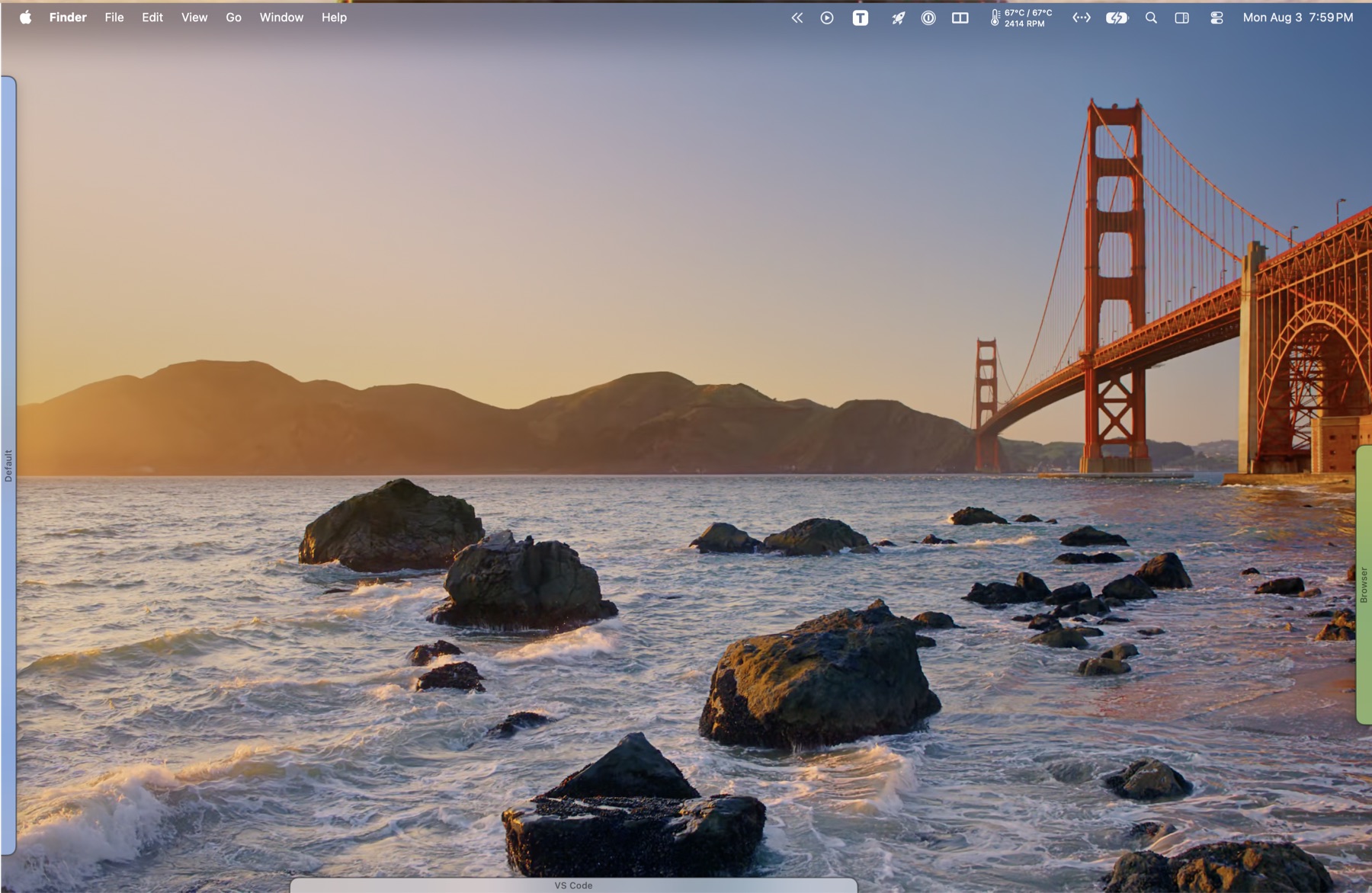
Minimize a window and it becomes a small tab on the side of your screen. Click the tab, the window comes back. No Dock hunting, no Mission Control, no wondering where anything went.
macOS 14 or later. One time purchase, works on every Mac you own.
Tabify turns a minimized Mac window into a small tab on the edge of your screen. Minimize the window as you normally would, or hover its yellow button and pick a destination, and the window leaves the screen and appears as a tab. Click the tab and it comes straight back to where it was. It is $15 once, runs on macOS 14 and later, and needs the Accessibility permission, because moving another app's windows is only possible through it.
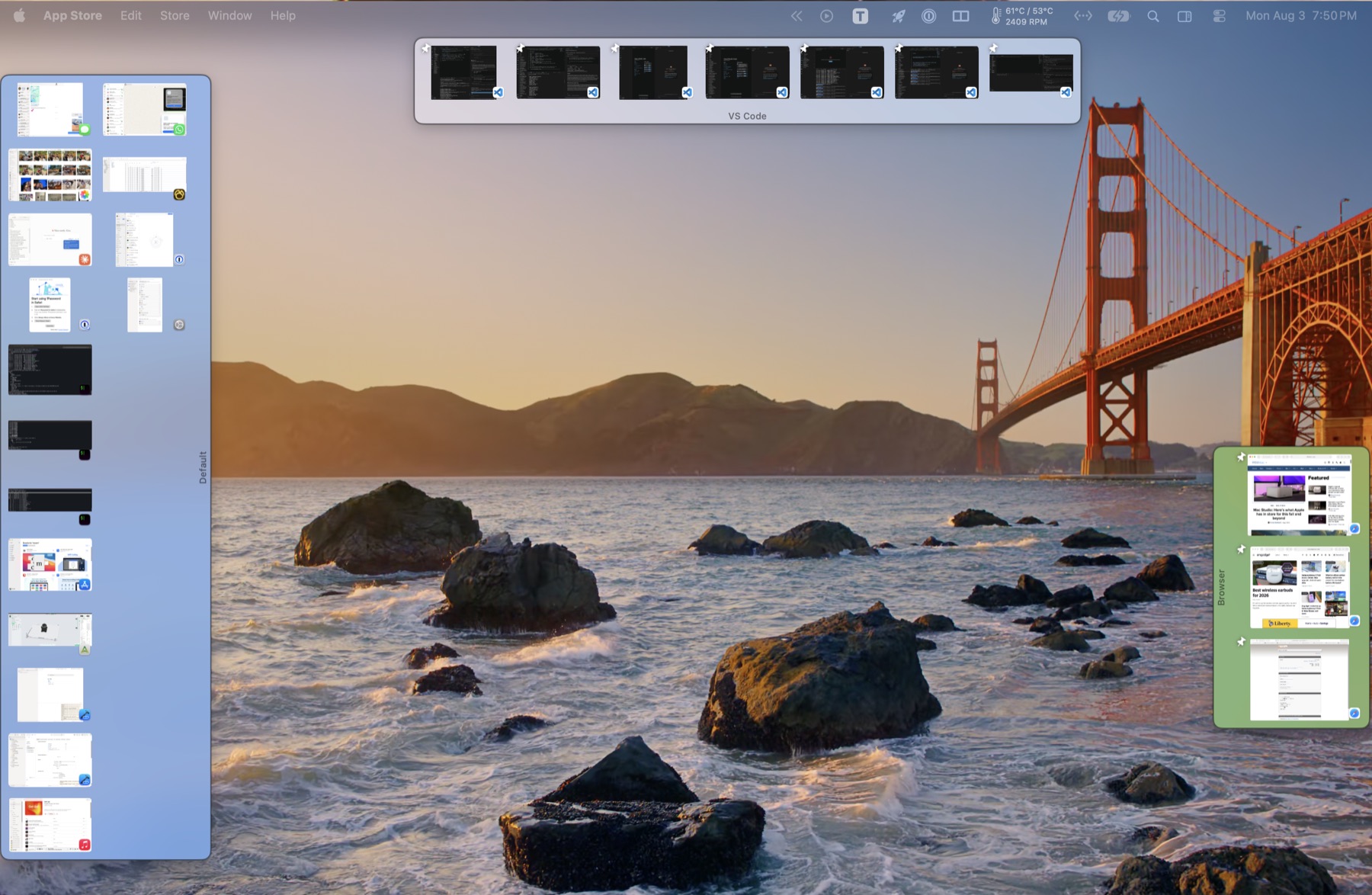
How do I turn a Mac window into a tab?
Minimize, as you already do
Click the yellow button or press ⌘M. The window becomes a tab instead of vanishing into the Dock.
Or hover the yellow button
Rest on it and a small menu appears, so you can choose exactly where the window should go.
Click to bring it back
Or switch to the app, or pick the window from its own Window menu. All three work.
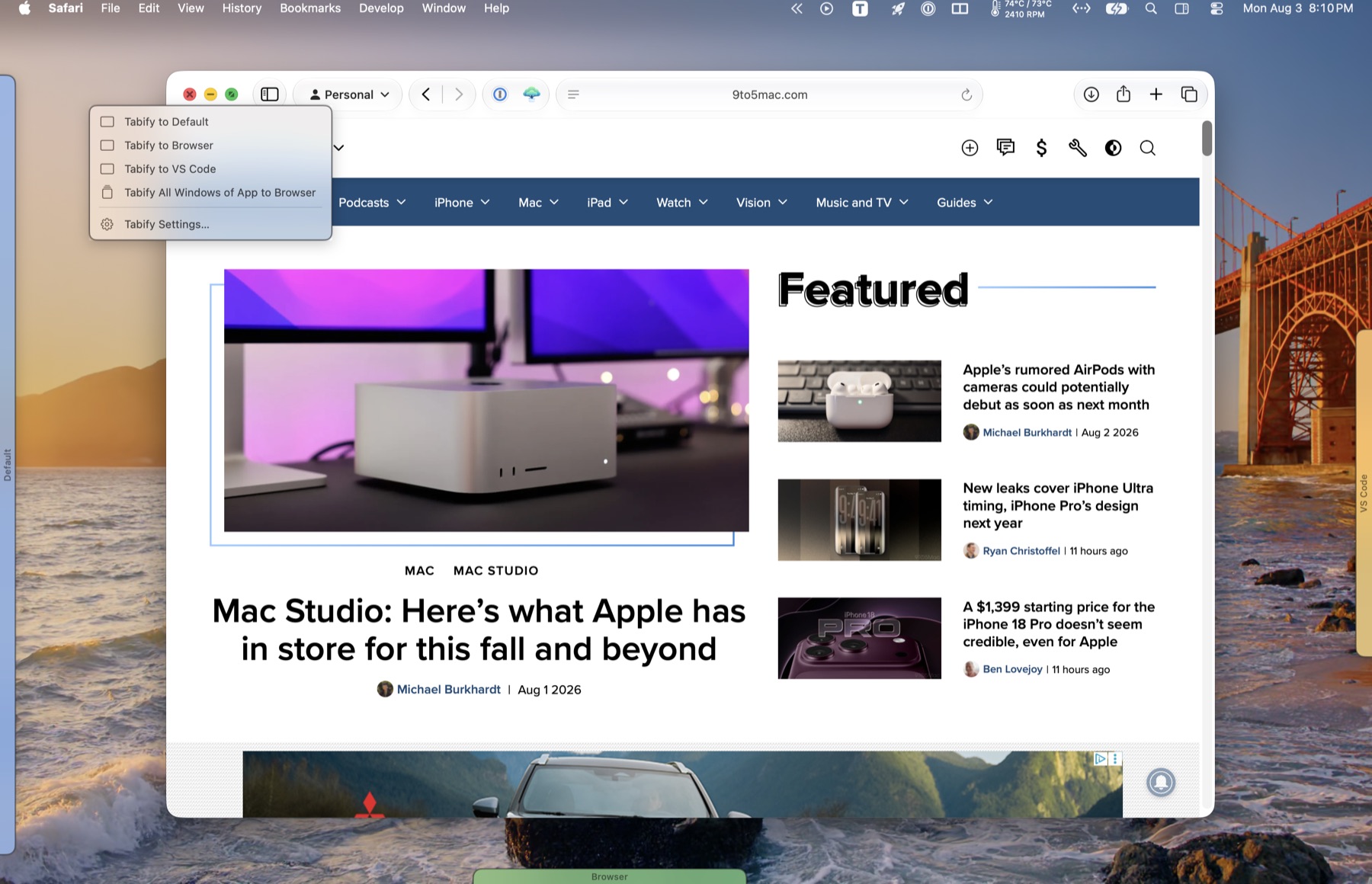
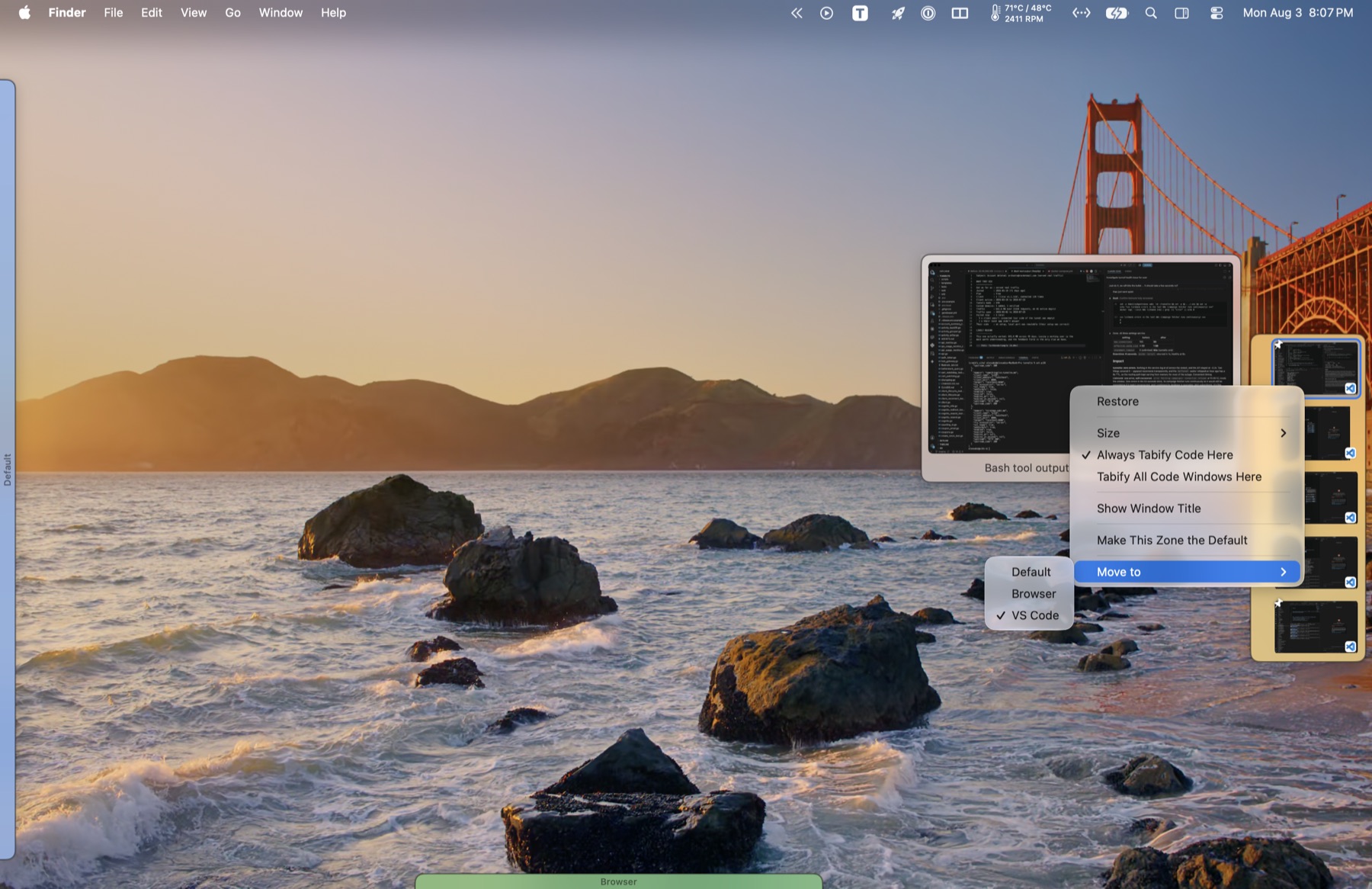
Can I have more than one tab strip?
A zone is a named strip in its own spot on screen. Keep work on the left and everything else on the right, or pin an app so its windows always land in the same place.
Put them anywhere
Drag a strip to any edge, or leave it floating. It remembers, on every display.
Pin an app
Pin Safari to "Browser" and every Safari window goes there without being asked.
Real window pictures
Tabs can show the window itself rather than an app icon, so two documents never look alike.
Hover to see more
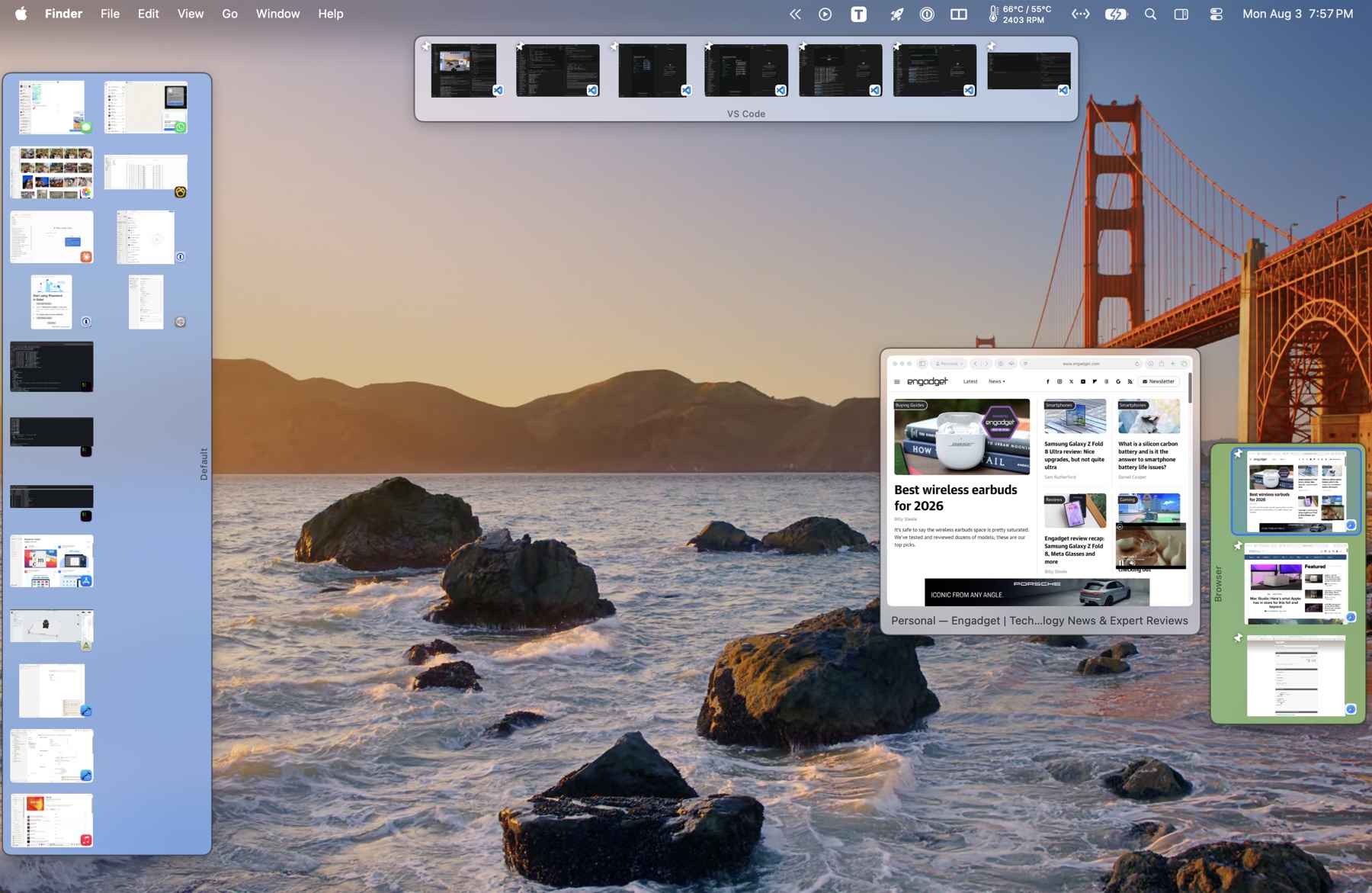
Rest on a tab for a larger preview with the window's title. Click it to bring the window back.
Focus mode
⌃⌥⌘E puts every window away except the one you are working in.
Settings follow you
Zones, pins and shortcuts sync between your Macs through iCloud. Nothing else leaves your machine.
Which window is which?
Rest on a tab and the window appears full size, with its title underneath. The tab it belongs to is ringed, so there is never any doubt. Click the preview and the window comes back.
Can the tab strip hide when I am not using it?
Turn on auto-hide and a strip slides off the edge, leaving just a small tab. Move the pointer there and it comes back.
What happens to my windows when Tabify quits?
A window Tabify has put away can always be brought back. Quitting restores everything first. So does being force quit, or logging out. If something is ever hidden with no tab pointing at it, one menu item finds it and puts it back on screen.
How much does Tabify cost?
Every Mac you own. Free updates throughout the major version you buy. No account, no sign in.
Your licence key arrives by email within a minute. It is checked on your own Mac and never sent anywhere.
What are the catches?
| Two permissions | Tabify needs Accessibility to move other apps' windows, which is the whole job. Window pictures additionally need Screen Recording. Both are granted once, in System Settings. |
|---|---|
| Not on the App Store | Apple requires new App Store apps to be sandboxed, and a sandboxed app cannot move another app's windows. That is why Tabify is sold here. |
| Mission Control still sees parked windows | In the default mode a parked window is moved, not minimized, so macOS still lists it. Switch to minimize mode if that bothers you. |
Questions people ask
Why does Tabify need Accessibility permission?
Moving and restoring another app's windows is only possible through the macOS Accessibility API, and macOS puts that API behind an explicit grant. Tabify asks for it on first launch. It reads window positions and titles and it moves windows. It does not read what is inside them.
Is Tabify a subscription?
No. Tabify is $15 once, for every Mac you own. Every update within the major version you bought is free and arrives in the app. There is no account and nothing expires. A future major version may be a paid upgrade, and if it is, the version you bought keeps working.
Does Tabify work with more than one display?
Yes. A zone belongs to a display, and each display remembers the strips you put on it, so tabs stay where you left them when you plug a monitor back in. If you would rather every strip appeared on every screen, turn on Show tabs on all displays in Settings. A zone whose monitor is unplugged moves to the main display rather than disappearing.
Can I change the colour of a zone?
Yes. Right-click anywhere on a strip and pick Colour: eight colours, a full colour picker under Custom, or None for a plain strip. Each zone keeps its own, which is the quickest way to tell three strips apart at a glance. The same menu renames the zone.
Can I change how big the tabs are?
Yes, at three levels, each overriding the one above it. Settings has a slider for every tab, from 20 to 72 points. A zone's own menu has Icon Size, so one strip can run small while another stays large. And a single tab can be given its own size from its right-click menu. Set anything back to Default to follow the level above again.
Can I change the size of the window preview?
Yes. Resting the pointer on a tab shows a larger picture of that window, and Settings has a slider for how wide it is, from 160 to 640 points. The height follows the shape of the window itself. You can turn the preview off entirely in the same place. It shows the real window if you have window pictures switched on, and the app's icon if not.
Can I make an app always go to the same strip?
Yes, and it happens by itself. Send a window to a zone by name and that zone becomes the app's home, so its next window goes there without being asked. The most recent choice wins. Minimizing with the yellow button follows the home zone but never changes it, any tab's menu can unset it, and there is a switch in Settings if you would rather nothing was remembered.
Can I move a strip, or give it more than one column?
Drag it anywhere. A strip snaps to whichever edge you drop it near, on any display, or floats free in the middle of the screen if you would rather keep two strips on the same side without stacking them. Its menu has Columns, which is automatic by default and can be fixed at up to four. Columns on a strip down the side, rows on one across the top.
Do my settings follow me to another Mac?
If you turn on iCloud sync in Settings, yes: your zones, their colours and positions, which apps live where, your shortcuts, your preferences and your licence key. Tabs themselves are never synced, because a tab points at a window on this Mac and that window does not exist on the other one.
Is Tabify on the Mac App Store?
No. Apple requires new App Store apps to be sandboxed, and a sandboxed app cannot move another app's windows. Tabify is sold here instead, signed and notarized by Apple.
Which versions of macOS does Tabify support?
macOS 14 or later, on both Apple silicon and Intel Macs.